

Download the app to Play in PA!


Registration is easier, faster and mobile with the Play in PA! app.
Use the app to:
- Get notifications about program updates
- Use your device as your membership card – just tap and play!
- Check out courses and plan your schedule ahead of time
- Find punch pass courses
- Get course codes earlier
- Manage your membership from your device
- Quickly view and register for drop-in courses
- Pay for courses securely using your credit card
- Filter your course searches by age, date, star or end time and category
Have you got questions?
To download the app, go to the App Store (iOS) or Google Play (Android) and search for “playinpa.” Then, download and install the app on your device.
Log in using your existing PlayinPA recreation account credentials.
Creating a Parks, Recreation & Culture account from home is no longer available for new accounts. If you don’t have an account, please drop by Echo Centre, the Aquatic Centre or the Multiplex to set up your account. You will need to show current photo ID.
If you have forgotten your password, tap Forgot Password. A temporary password will be emailed to you.
Yes. You can enable biometric login when prompted during setup, or you can turn it on later by going to Account > Settings and switching on the biometric login option.
Tap the Membership ID tab on the bottom menu. Swipe to view cards for other family members.
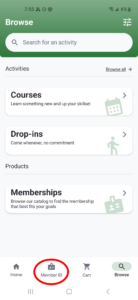
Tap the Browse tab to view Membership options. Select a Membership. Add Members/Attendees.
Next, tap View Cart > Checkout > Select Payment Method > Confirm Purchase.
Go to the Account tab and tap Memberships. Select a family member’s name to view their memberships. You can toggle between Active and Inactive memberships.
Currently, the app only supports credit card payments. Additional options such as subsidies, and credit balance will be available in future updates.
You can still use subsidies and credit balances by logging in with a desktop computer or laptop.
Tap the Browse tab and choose between Courses, Drop-ins, or All Activities. You can also use the search bar with natural language (for example, “yoga weekday mornings”), or tap the Filters button in the top-right corner to refine by keywords, type, location, date, days of the week, time, age, or category.
Find the program you want and tap Register. Select the participant(s), complete any required questionnaires, then tap Add to Cart.
Next, tap View Cart > Checkout > Select Payment Method > Confirm Purchase.
Please note: Only Credit Card payment is supported at the moment. A countdown timer will appear, and you must complete your registration within the allotted time.
Tap the Home tab to view upcoming activities under Your Upcoming Activities or go to Account > Schedules to see all schedules.
Please call Echo Centre at 250.723.2181 or the Aquatic Centre at 250.720.2514 to withdraw from a registration.
Look for an alert at the top of the Home tab. Tap the alert and select Confirm, or go to Account > Pending Confirmations.
Go to Account > Personal Information. To view other family members, tap Family Information.
If you need to update your information, please email [email protected].
This is likely because the participant does not meet one or more requirements such as age or residency. For assistance with registration issues, please contact [email protected] or call 250.723.2181.
These payment options are not available at this time. Stay tuned for future enhancements.
This option is not available at this time. Stay tuned for future enhancements.
Make sure your family members are linked to your account in the recreation system. To make updates or add family members, please email [email protected], or call us at 250.723.2181 or visit Echo Centre or the Aquatic Centre.
This is due to your Apple account settings. It occurs when the default reminders list is tied to an account (such as Exchange or a non-iCloud email account) that does not support location-based reminders.
To resolve this issue:
- Make iCloud the Default Account for Reminders
Go to Settings → Reminders → Default List and set this to an iCloud list (not “On My iPhone,” Gmail, or Exchange). - Enable iCloud Reminders (if not already enabled)
Go to Settings → Tap your name (Apple ID) → iCloud and make sure Reminders is toggled on. - Disable Non-Supported Accounts (optional but recommended)
If you have an Exchange, Yahoo, or Gmail account syncing Reminders:- Go to Settings → Passwords & Accounts (or Mail > Accounts on newer iOS)
- Tap the account (e.g., Gmail or Exchange)
- Toggle Reminders off
Select Courses or Drop-ins, then enter the barcode (excluding leading zeros) in the search field.
Please contact [email protected] or visit our front counter at Echo Centre or the Aquatic Centre for support.
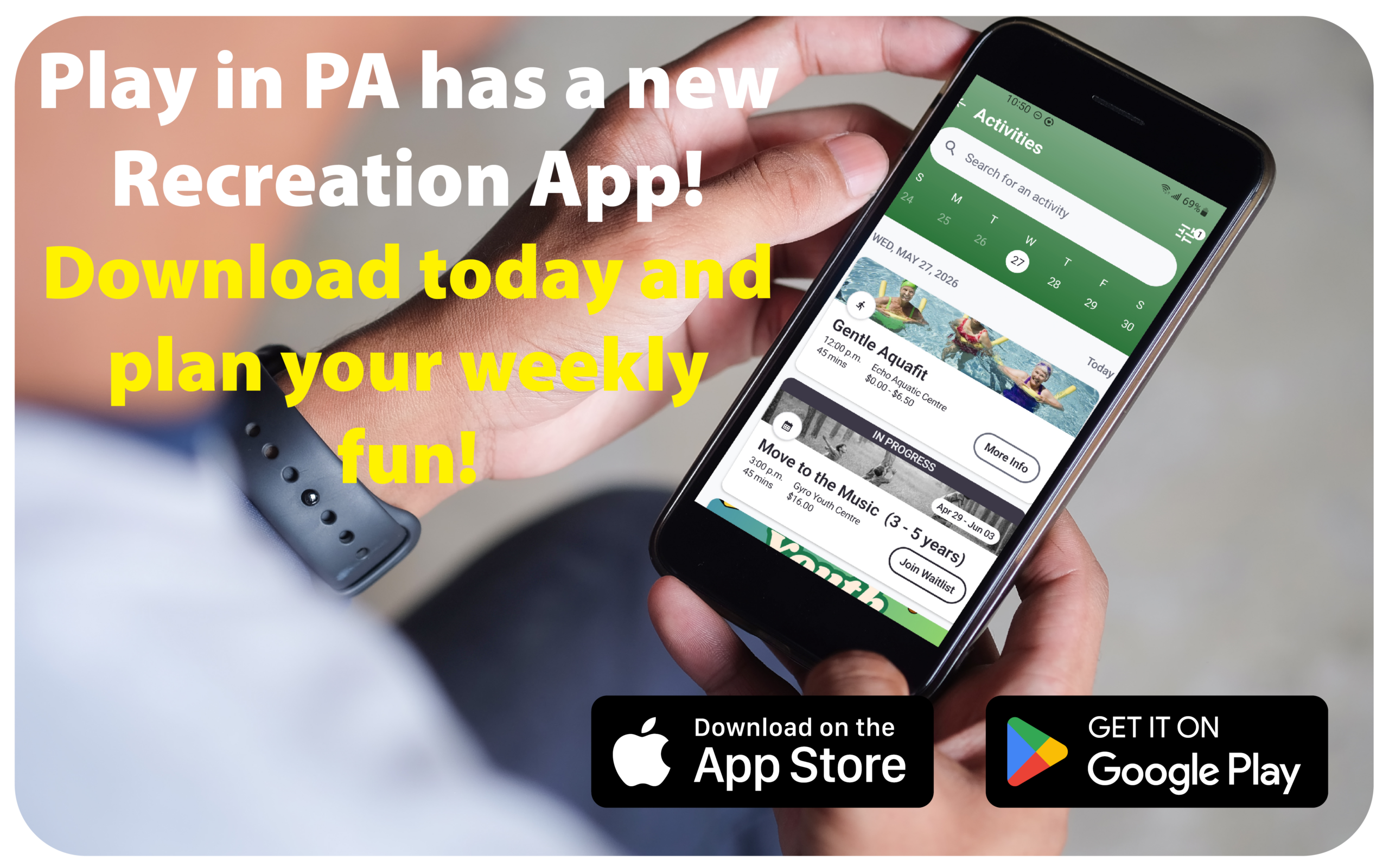
Visit your preferred app store and search for “playinpa” to download the app today.